3D Animation & Blender Rendering Workstation Guide
By Rohit, Founder ·
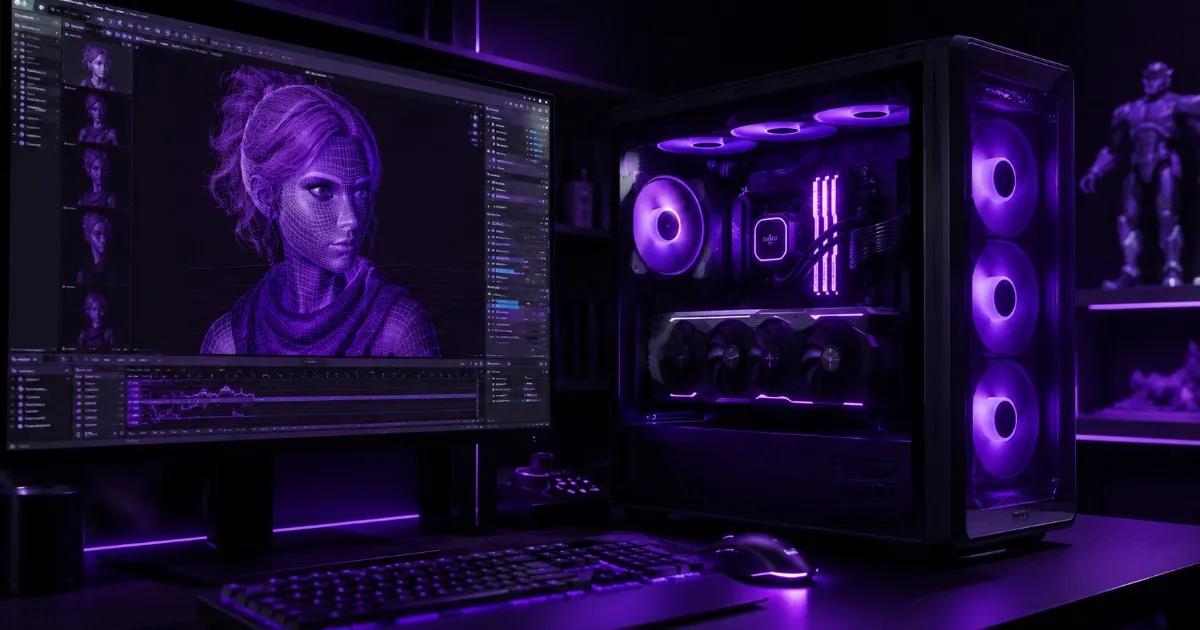
Most people asking "what PC do I need for Blender rendering" get an answer sized for a single hobby project, not a real animation pipeline. A 30-second character animation in Cycles with denoising on can bring a well-specced gaming PC to its knees, and a studio running multiple render passes overnight needs something a gaming case was never built to sustain. The right workstation for 3D animation depends on which render engine you use, how complex your scenes are, and whether you're rendering solo or feeding a render queue for a team — not just "how much can I spend."
GPU Render vs CPU Render: Which Matters More for Blender?
Blender's two main engines behave very differently on hardware. Cycles (Blender's path-traced renderer) is GPU-accelerated via NVIDIA OptiX/CUDA and scales almost linearly with more VRAM and CUDA cores — this is where "which GPU is best for Blender rendering" actually gets answered. EEVEE (Blender's real-time rasterized engine) leans on raw GPU rendering power for viewport-speed previews and is far less VRAM-hungry. If you're doing final-frame Cycles renders with GI, volumetrics, and denoising, GPU VRAM is your real bottleneck. If you're mostly doing EEVEE previews and motion graphics, a mid-range GPU with a strong CPU for simulation and playback is enough.
Studios using Octane, Redshift, or V-Ray instead of native Cycles hit the same pattern — these are GPU-first render engines too, so the VRAM-first sizing logic below applies whether you're a Blender artist or working in Maya/Cinema 4D with a third-party renderer.
How Much VRAM Do You Actually Need for 3D Rendering?
This is the single most common question we get from studios and freelancers alike. VRAM requirement scales with scene complexity, not resolution alone:
- 8-12GB VRAM: Simple character animation, product visualization, low-poly motion graphics — comfortable on an RTX 4070/4080-class card.
- 16-24GB VRAM: Environment scenes with heavy textures, hair/fur systems, fluid simulations, architectural visualization with dense geometry — needs an RTX 4090 or A-series card.
- 24GB+ VRAM (often multi-GPU): Feature-length VFX shots, film-quality environments, simulation-heavy scenes (smoke, cloth, destruction) with 8K texture sets — this is A-series/Tesla territory, and studios often run 2 GPUs to split render load across a scene queue.
Running out of VRAM mid-render doesn't just slow things down — Blender falls back to CPU rendering or crashes the render entirely, which is why under-speccing GPU memory is the most expensive mistake in a 3D workstation build.
CPU, RAM and Storage for Simulation and Multi-Frame Renders
GPU gets the attention, but CPU and RAM decide whether your pipeline actually runs smoothly:
- CPU: Physics simulations (cloth, fluid, smoke, rigid body), particle systems, and viewport playback with complex rigs still lean on core count. A high-core-count Xeon Scalable or EPYC handles simulation bakes and background renders without freezing your viewport.
- RAM: Each open Blender scene with high-res textures and simulation caches can easily use 32-64GB on its own. Studios running batch renders or keeping multiple scenes open for a shot review need 128GB+ to avoid disk swapping, which silently tanks render speed.
- Storage: Fast NVMe SSD storage matters for texture streaming and simulation cache read/write — a slow drive causes stutter during playback even on a powerful GPU. Studios rendering image sequences also need real storage headroom: a single 4K animated sequence at high sample counts can run into hundreds of gigabytes per shot.
ProStation Tiers Mapped to 3D Animation & Rendering Workloads
ProStation's Starter/Pro/Ultra tiers map directly onto how heavy your rendering workload is:
| Tier | Best fit for | CPU / GPU | RAM | Storage |
|---|---|---|---|---|
| Starter | Freelance motion graphics, product viz, EEVEE-heavy work, learning Blender | Entry Xeon E / EPYC + optional consumer RTX GPU | 16–64GB ECC | 1TB NVMe SSD |
| Pro | Character animation studios, architectural viz, Cycles/Octane/Redshift final renders | Xeon Scalable / EPYC Milan + NVIDIA RTX (24GB-class) | 64–256GB ECC | 2TB NVMe SSD + HDD options |
| Ultra | Full VFX/animation studio pipelines, film-quality environments, multi-GPU render nodes | Dual Xeon Scalable / EPYC Genoa + RTX/A-series (multi-GPU) | 256–512GB ECC | 4TB+ NVMe SSD (RAID) |
Most solo 3D artists and small studios doing regular Cycles/Octane work land on Pro tier — enough VRAM headroom for dense scenes without paying for capacity you won't use. Studios running a full production pipeline with a shared render queue should look at Ultra, and our VFX studio render server setup guide covers multi-node render farm sizing in more depth if you're scaling past a single workstation.
Single Powerful Workstation or a Small Render Farm?
A common question from growing studios: "should I buy one very powerful machine or several mid-range ones for a render queue?" For interactive work — modeling, rigging, animating, EEVEE previews — you want one strong workstation per artist, because that's real-time, single-user work. For final-frame Cycles/Octane rendering, a small render farm of 2-4 mid-tier nodes queuing frames often finishes an animation faster and cheaper than one maxed-out machine, since render jobs split cleanly across frames. Most studios end up with both: Pro-tier artist workstations for daily work, plus a shared Ultra-tier render node (or two) that picks up final output overnight.
Why Server-Grade Cooling Matters for Overnight Render Queues
An animation render queue can run unattended for 8-12 hours straight — a completely different thermal profile than a gaming session with natural pauses. Retail gaming towers and stock coolers are tuned for bursty loads with cooldown gaps, not sustained 100% GPU/CPU utilization overnight. When a consumer-grade PC throttles a few hours into an unattended render, you don't find out until morning — and by then you've lost a night of render time to dropped clock speeds. ProStation builds use server-grade cooling and case airflow designed for exactly this kind of long, unattended, full-load run.
Why Choose ProStation Systems
A 3D animation or rendering workstation isn't just "a gaming PC with more RAM" — it needs VRAM sized to your actual scene complexity, a CPU that won't choke on simulation bakes, and cooling that survives an unattended overnight render queue. ProStation builds every workstation around the real workload, not a generic retail configuration, which is exactly where off-the-shelf gaming PCs and even some pre-built "creator" desktops fall short for studio-grade rendering.
"We needed a rendering server fast — ProStation delivered in 4 days, exactly as promised. The specs were perfect for our After Effects pipeline. Incredible value for brand-new hardware." — Rahul Mehta, CTO, Designify Studios (Video Production)
Every build starts with a free consulting call where we map your actual render engine (Cycles, Octane, Redshift, V-Ray), scene complexity, and team size — not a generic template — ships in 4 working days, and comes with a 1–3 year warranty and 24/7 support. See the video rendering use case page, VFX & studios industry page, full server tier specs, or go straight to customize your build. If your pipeline is closer to live editing and streaming than pure 3D rendering, our 4K/8K video editing workstation guide covers that adjacent workload.
Frequently Asked Questions
Q1. What PC specs do I need for Blender rendering?
It depends on your render engine and scene complexity: for Cycles/GPU rendering, prioritize VRAM (16-24GB for most professional work) on an NVIDIA RTX card, pair it with a high-core CPU for simulations, and use enough RAM (64GB+) to avoid disk swapping on complex scenes.
Q2. Is CPU or GPU more important for 3D rendering?
For Cycles, Octane, Redshift, and V-Ray — all GPU-accelerated render engines — GPU (specifically VRAM) matters most for render speed. CPU still matters heavily for physics simulations, particle systems, and viewport responsiveness while you're actively animating.
Q3. How much VRAM do I need for 3D animation rendering?
8-12GB covers simple character animation and product visualization. Environment scenes with heavy textures or simulations need 16-24GB. Film-quality VFX work with dense 8K texture sets typically needs 24GB+ and often multiple GPUs.
Q4. What's the difference between Cycles and EEVEE for hardware requirements?
Cycles is path-traced and GPU/VRAM-intensive for final-quality output — it's what you use for photorealistic final renders. EEVEE is real-time rasterized and much lighter on VRAM, built for fast viewport previews and stylized/motion-graphics work rather than final photoreal frames.
Q5. Should a small studio buy one powerful workstation or multiple render nodes?
For active artist work (modeling, animating, rigging), each artist needs their own capable workstation. For final rendering, a small render farm of 2-4 mid-tier nodes often completes an animation faster than one maxed-out machine, since frames split cleanly across nodes.
Q6. How much does a 3D animation/rendering workstation cost in India?
A Pro-tier build with a 24GB-class GPU, strong CPU, and 128GB RAM typically starts around ₹2.5-4 lakh. Ultra-tier multi-GPU render nodes for full studio pipelines run higher — get a free custom quote based on your exact render engine and scene complexity.
Final Recommendation
If you're a freelancer doing occasional Cycles or EEVEE work, a Starter or entry Pro build with a single strong GPU is enough. Once you're running dense environment scenes, heavy simulations, or a shared studio render queue, spec for VRAM headroom first, a high-core CPU for simulation bakes second, and cooling built for unattended overnight runs — not a gaming PC that throttles by hour three. Talk to ProStation's team before you order and get a build matched to your actual render engine and scene complexity, not a generic gaming SKU. Call +91 87968 22044 or WhatsApp wa.me/918796822044 for a free consulting call.