File Server for 10-50 Users: Windows vs Samba vs NAS (India)
By Rohit, Founder ·
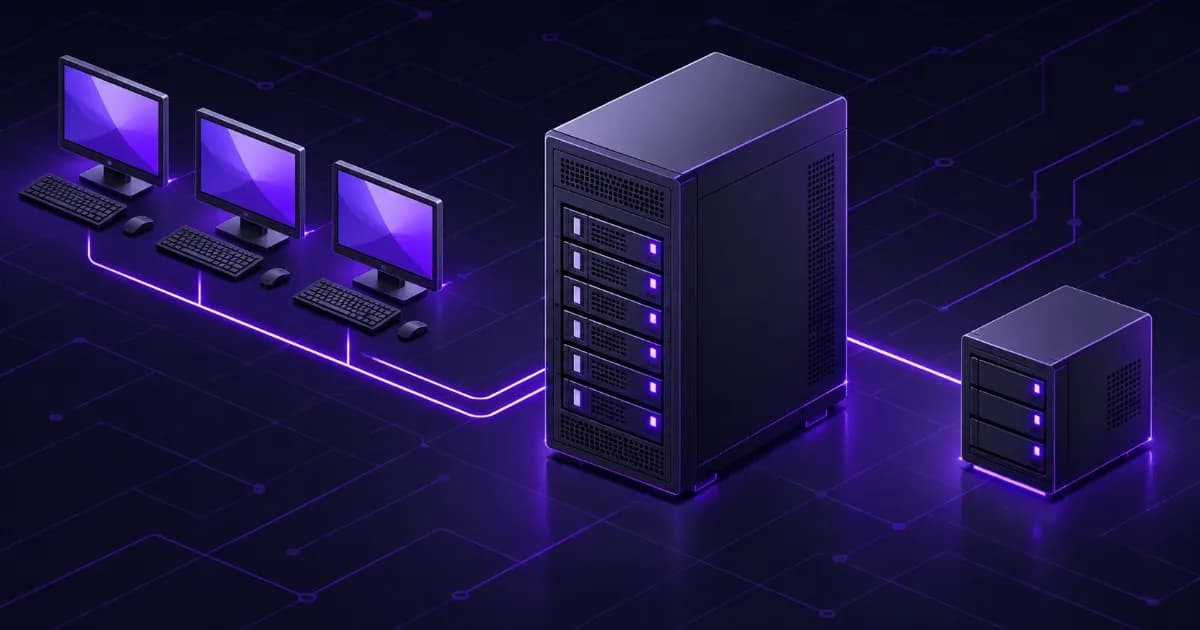
Short answer: for 10 to 50 users, pick the platform that matches how your office already works. Choose Windows Server if you run a Windows domain and want policies, quotas and familiar tools. Choose Linux with Samba if you want no per-user licence and have Linux skills. Choose a NAS-style tower with ZFS if data integrity and snapshots matter most and the box will do little else. On any platform the result depends on the same five decisions: enough capacity, a RAID layout that survives a drive failure, groups-based permissions, snapshots, and a separate backup you have actually tested.
This guide is for owners and IT admins searching for how to set up a file server for a small business, the best file server for small business, a Samba file server or a Windows file server setup. Product facts come from Microsoft, Samba and CISA documentation, which we read on 12 November 2026. Where something is our own advice or our own arithmetic, we label it. We do not quote prices, because storage and licence costs move too often for a printed number to stay true.
How do you set up a file server? The 10 steps in order
- List what you store and who needs it. Write down the shared folders, their current size and which teams need read or write access.
- Choose the platform. Windows Server, Linux with Samba, or a ZFS-based NAS-style server (next section).
- Size the hardware. Capacity for three years of growth plus snapshots, ECC memory, and a network link that suits your user count.
- Choose RAID or ZFS redundancy. It keeps the server running when a drive fails. It is not a backup.
- Create groups, then folders, then permissions. Permissions go to groups, never to individual users.
- Turn on snapshots. Windows shadow copies or ZFS snapshots let users restore yesterday's version of a file.
- Set up a separate backup that the file server cannot modify, and keep one copy offline or off-site.
- Lock down access. Disable SMBv1, avoid guest shares, use a VPN for remote staff, never expose file sharing to the internet.
- Add a UPS and monitoring. Alerts for drive health, free space and failed backups.
- Test a restore. Restore a file, then a folder, then plan a full recovery drill. A backup you have not restored is a guess.
Windows Server, Samba or a NAS-style tower: which should you pick?
All three serve files to Windows, Mac and Linux PCs over the SMB protocol, so users see a normal network drive. The differences are in management, licensing and recovery tools.
| Question | Windows Server | Linux with Samba | NAS-style tower (ZFS) |
|---|---|---|---|
| Licence cost | Windows Server licence plus CALs. Microsoft states CALs are required for every user or device accessing a server. | No per-user server licence for the OS. Windows PCs still need their own licences. | No per-user server licence for the OS. Check the specific NAS software's terms. |
| Best fit | Offices already on a Windows domain, group policy, existing Windows admin skills. | Teams with Linux skills, mixed PCs, a wish to avoid per-user licensing. | Storage-first offices where integrity, snapshots and simple management matter more than domain features. |
| Quotas and file screening | Built in through File Server Resource Manager (quotas, file screens, storage reports). | Possible through file-system quotas and configuration; more manual. | Dataset quotas are typical; verify in the software you choose. |
| User self-restore of old versions | Shadow Copies of Shared Folders via Volume Shadow Copy Service. | Samba's vfs_shadow_copy2 module exposes file-system snapshots to Windows clients as shadow copies. | Snapshots; exposure to Windows "Previous Versions" depends on the software. |
| Skills needed | Windows administration. | Linux command line and Samba configuration. | Web-managed in many products; still needs storage knowledge. |
| Watch out for | CAL counting and version support dates. | Keeping share and file permissions consistent. | Combining file serving with many other roles on one box. |
Our own view: for a 10 to 50 person office with a Windows domain and no Linux admin, Windows Server is the lower-risk choice because your IT partner already knows it. For a team with Linux skills, Samba on a well-built server removes the per-user licence line. Our Windows Server licensing guide explains core licences and CALs, and our NAS and storage server setup guide covers the hardware side of a NAS-style build.
How much storage and hardware do you need?
Size from your data, not your headcount. The method below is our own arithmetic, with example inputs that you should replace with your own numbers.
- Add up the current size of all shared folders.
- Multiply by the growth you expect over three years.
- Add room for snapshots (we suggest planning for extra space on top of the live data; the amount depends on how much your files change).
- Convert to raw drive capacity using the RAID layout.
| Example office (illustrative inputs) | Current data | Growth over 3 years | Usable capacity target |
|---|---|---|---|
| 10-user accounts and admin office, mostly documents | 0.5 TB | Doubles | About 1 TB plus snapshot space |
| 25-user design or architecture team | 4 TB | Triples | About 12 TB plus snapshot space |
| 50-user mixed office with scans and media | 8 TB | Doubles | About 16 TB plus snapshot space |
These are examples, not benchmarks. Real growth depends on what your team saves. CAD, photos, video and scanned documents grow much faster than spreadsheets.
How does RAID change the number of drives you buy?
| Layout | Usable capacity | Survives | Typical use here |
|---|---|---|---|
| RAID 1 (mirror) | One drive's worth | 1 drive failure | Small offices, 2-drive systems |
| RAID 5 / RAIDZ1 | Total drives minus 1 | 1 drive failure | Small arrays of smaller drives |
| RAID 6 / RAIDZ2 | Total drives minus 2 | 2 drive failures | Larger drives and arrays where a second failure during rebuild is a concern |
| RAID 10 (striped mirrors) | Half of total drives | 1 drive per mirror pair | Workloads with many small reads and writes |
The capacity arithmetic is standard. Which layout is right for you depends on drive size and how long you can tolerate a rebuild; our RAID levels guide compares them. Whatever you choose, RAID protects against a drive failing. It does not protect against deletion, corruption, fire or ransomware.
What else matters in the hardware?
- ECC memory. A file server holds your data in memory on its way to disk. ECC corrects single-bit errors, which is why storage builds use it. See our ECC vs non-ECC memory guide.
- Drives. Use drives rated for server or NAS use for 24x7 running, and keep a spare. Our NVMe, SAS and SATA guide explains the options. A small NVMe or SSD tier helps with databases and many small files; large archives are fine on hard drives.
- Network. A 1 GbE link tops out at 1,000 megabits per second, which is 125 megabytes per second before overhead (our arithmetic). Shared among many users and a backup job, that is tight. Our 1GbE, 10GbE and 25GbE guide helps you decide when to step up.
- Power. Size a UPS so the server can shut down cleanly. See our UPS sizing guide, and for redundancy see dual power supplies.
How should you design shares and permissions?
The mistake we see most is giving folder access to named people. When staff change, nobody can tell who has access to what. Use this pattern instead (it is common administrator practice and our recommendation, not a vendor rule).
- Create groups by role or team, for example Accounts, Sales, Design and Management.
- Create a folder structure that mirrors the groups: one top-level folder per team, one for company-wide documents, one for management only.
- Grant each group access to its folder. Where possible, give read-only to people who only need to look.
- Add and remove people by changing group membership. Do not touch folder permissions for a joiner or leaver.
- Review access every quarter. Export the group list and ask each team lead to confirm it.
On Windows Server, a common approach is to keep the share permission broad and control the real access through NTFS permissions on the folders. Windows Server's File Server Resource Manager adds quotas (Microsoft's own example is a 200 MB quota for each user home folder with a notification at 180 MB), file screens that stop selected file types being saved, and scheduled storage reports.
On Samba, the smb.conf documentation says read only defaults to yes, so you must set writable access deliberately for each share. The force group setting assigns a default primary group to all users connecting to a share, which Samba documents as a way to share files by making all access use that group for permission checks.
Avoid guest or anonymous shares. Microsoft notes that in Windows Server 2025 and Windows 11 version 24H2, SMB signing is required by default, and this can block connections to guest-authenticated shares or third-party SMB servers that do not support signing. Authenticated access with named accounts avoids that problem and is safer.
How do snapshots let users undo mistakes?
A snapshot is a read-only point-in-time copy of a volume. When a user deletes or overwrites a file, you or the user restore the older version in minutes instead of searching backups.
- Windows. Shadow Copies of Shared Folders uses Volume Shadow Copy Service. Microsoft's documentation says that by default you can maintain 64 shadow copies for that feature on a volume, which you can change with the
MaxShadowCopiesregistry key, and thatvssadmin resize shadowstoragecontrols the space used. - Samba. The
vfs_shadow_copy2module lets Windows clients browse file-system snapshots as shadow copies on Samba shares. - ZFS. Snapshots are a native feature of the file system.
Our schedule suggestion (our own advice): hourly snapshots during working hours kept for a day or two, daily snapshots kept for a few weeks, and a weekly snapshot kept longer. More snapshots use more space, so tune this to how fast your data changes. Snapshots live on the same server, so they protect against mistakes, not against losing the server.
What is a proper backup plan for a file server?
RAID and snapshots keep you running. A backup lets you recover when the server itself is lost. The rule of thumb many administrators use, often called 3-2-1, is three copies of the data, on two kinds of storage, with one copy off-site. We add a fourth condition from CISA's guidance: at least one copy the file server cannot reach or change.
- CISA's #StopRansomware guide advises maintaining offline, encrypted backups of critical data and regularly testing their availability and integrity.
- CISA explains why: many ransomware variants try to find and then delete or encrypt accessible backups, so a backup that stays connected to the network may not survive an attack.
- CISA also notes that some cloud vendors offer immutable storage, and cautions that it does not meet compliance criteria for certain regulations and that misconfiguration can be costly.
A workable pattern for a small office: a second storage box or external drives that pull the backup from the file server (so the file server has no credentials to delete them), a rotated offline copy, and an off-site or cloud copy. Back up on a schedule, encrypt the backup, and write down who checks the backup report each morning. Our downtime cost guide shows why a day of lost files usually costs more than the backup hardware.
How do you secure the file server and remote access?
- Disable SMBv1. Microsoft says SMBv1 has significant security vulnerabilities, that it is not installed by default in Windows 11 or Windows Server 2019 and later, and it recommends updating the old device that needs it instead of enabling SMBv1. CISA also recommends disabling SMBv1 and upgrading to SMBv3 after checking dependencies. Samba's
server min protocoldefault is SMB2_02, so Samba does not offer SMB1 by default. - Use SMB encryption for sensitive shares. Microsoft documents SMB Encryption per share, for the whole server, or when mapping drives. It protects data in transit and does not cover data at rest, for which Microsoft points to BitLocker.
- Keep file sharing off the internet. Let remote staff connect through a VPN. CISA recommends disabling ports and protocols not needed for business, naming Remote Desktop Protocol (TCP 3389) as an example, and says that if multifactor authentication is not available for teleworkers, require passwords of 15 or more characters. Closing SMB to the internet (port 445) is our own addition to that advice.
- Use separate admin accounts and turn on multifactor authentication wherever the platform supports it.
- Patch on a schedule and keep the firmware of drives and RAID controllers current.
For firms that handle sensitive client documents, see our law firm document server guide.
Which ProStation Systems tier suits a file server?
ProStation Systems builds new custom tower servers on Intel Xeon with ECC DDR4 memory. Our site lists tiers by processor and memory, and we map file serving as follows, based on what our servers page and storage use-case page say.
| Office | Tier to ask about | Notes |
|---|---|---|
| 10-25 users, documents, shared folders, print | Starter (Intel Xeon E, 16-64 GB ECC DDR4) | Our licensing guide describes Starter as a small-office file, print and app server. OS options listed: Ubuntu and Windows Server. |
| 25-50 users, large files, a few virtual machines or backup software on the same box | Pro (Intel Xeon Scalable, 64-256 GB ECC DDR4) | More memory and cores for snapshots, antivirus scanning and extra services. Pro lists Ubuntu, Windows, VMware and Proxmox. |
| Storage-first server with multi-bay drives | Our storage and backup use-case page | The page lists hot-swap bays, ZFS or hardware RAID, ECC memory, and 10 or 25 GbE networking options. |
ProStation pre-installs the operating system you choose, and operating systems carry their own licences unless a licence is expressly in your quote, so ask for it in writing. Builds ship in about 4 working days, with a 1-year hardware warranty included and extended warranty (2 or 3 years) available at extra cost. We do not claim a user-count guarantee for any tier, because it depends on your files, your network and your applications. Share your folder sizes and user list and we will size it with you. See storage and backup servers, small business servers, the server tiers and our warranty terms.
What should you maintain after the server is running?
- Daily: check the backup report and drive health alerts.
- Monthly: check free space, apply updates in a maintenance window, review who is in each group.
- Quarterly: restore a sample file and a folder from backup, and review permissions with team leads.
- Yearly: run a full recovery drill, review warranty dates and your capacity plan. Plan the expansion before the volume passes 70 to 80 percent full (our rule of thumb).
When one server is not enough, our medium business server setup guide and our small business server guide cover the next steps, and the tower server vs desktop PC guide explains why an old desktop is a weak place for shared files.
Frequently Asked Questions
Q1. Should a small office use Windows Server or Samba for a file server?
Use Windows Server if your office already runs Windows PCs with a domain, wants group policy, or needs the built-in quota and file-screen tools. Microsoft's pricing page says CALs are required for every user or device accessing a Windows server, so budget the licences. Use Linux with Samba or a ZFS-based NAS build if you want no per-user licence cost and your team is comfortable with Linux administration. Samba's documentation describes a module that shows file-system snapshots to Windows users as shadow copies, so users can restore their own files on either platform.
Q2. How much storage does a file server for 10 to 50 users need?
Start from the data you have today, not the user count. Add up the current size of the shared folders, multiply by the growth you expect over three years, and add room to keep snapshots. Then convert to raw drive capacity using your RAID layout: RAID 1 keeps one drive's worth, RAID 5 keeps all drives minus one, RAID 6 all minus two, and RAID 10 half. The sizing table in this article shows the arithmetic with example inputs. Our rule of thumb is to plan the first expansion before the volume passes 70 to 80 percent full.
Q3. How do I set file server permissions the right way?
Give permissions to groups, never to individual users. Create one group per team or folder, for example Accounts, Design and Management, put people in the groups, and grant each group access to its folders. On Windows, a common approach is to keep the share permission broad and control access through NTFS permissions on the folders. On Samba, set read and write access per share and use a force group setting if everyone on a share should work under one group. When someone joins or leaves, you change group membership, not folder permissions.
Q4. How do I protect a file server from ransomware?
CISA's #StopRansomware guide recommends keeping offline, encrypted backups and testing them regularly, because many ransomware variants try to find and delete or encrypt backups they can reach. It also recommends disabling SMBv1 and limiting remote desktop services. In practice: keep snapshots for quick recovery, keep a separate backup copy that the file server cannot write to or delete from, do not expose the file server to the internet, patch it, and test a restore every quarter. RAID does not protect against ransomware, because RAID mirrors whatever is written.
Q5. Can the same server run applications as well as file shares?
It can, but it is not always wise. A small office can run light applications next to file shares if the server has enough memory and CPU. The risk is that an application update or crash takes the file shares down with it, and a security problem in one service exposes the other. If you need both, a virtualization layer such as Proxmox lets you keep the file service in its own virtual machine. Our virtualization host guide covers that design, and our tier table in this article shows when to step up from Starter to Pro.
Q6. Do I need CALs for a Windows file server?
Yes, if you run Windows Server Standard or Datacenter. Microsoft's Windows Server 2025 pricing page states that CALs are required for every user or device accessing a server and that Standard and Datacenter require a Windows Server CAL. Our licensing guide explains core licences and CALs in more detail. A Samba file server on Linux has no such per-user licence, but Windows PCs connecting to it still need their own valid Windows licences.
Tell us your folders and users
Send us your number of users, current data size, the applications that touch the files and your backup plan. ProStation Systems will recommend a platform and a tier and send an itemised quote. Use the customize form or book a free consultation. For a checklist before you order, read our custom server buyer checklist, or see how to choose a server for your business.
Sources (read 12 November 2026): Microsoft Windows Server 2025 licensing and pricing, Microsoft Volume Shadow Copy Service, Microsoft File Server Resource Manager, Microsoft: detect, enable and disable SMBv1, v2 and v3, Microsoft SMB security enhancements, Samba smb.conf manual, Samba vfs_shadow_copy2, CISA #StopRansomware Guide. Capacity examples, schedules and the permission pattern are our own advice.