4K/8K Video Editing Workstation: The Complete Spec Guide
By Rohit, Founder ·
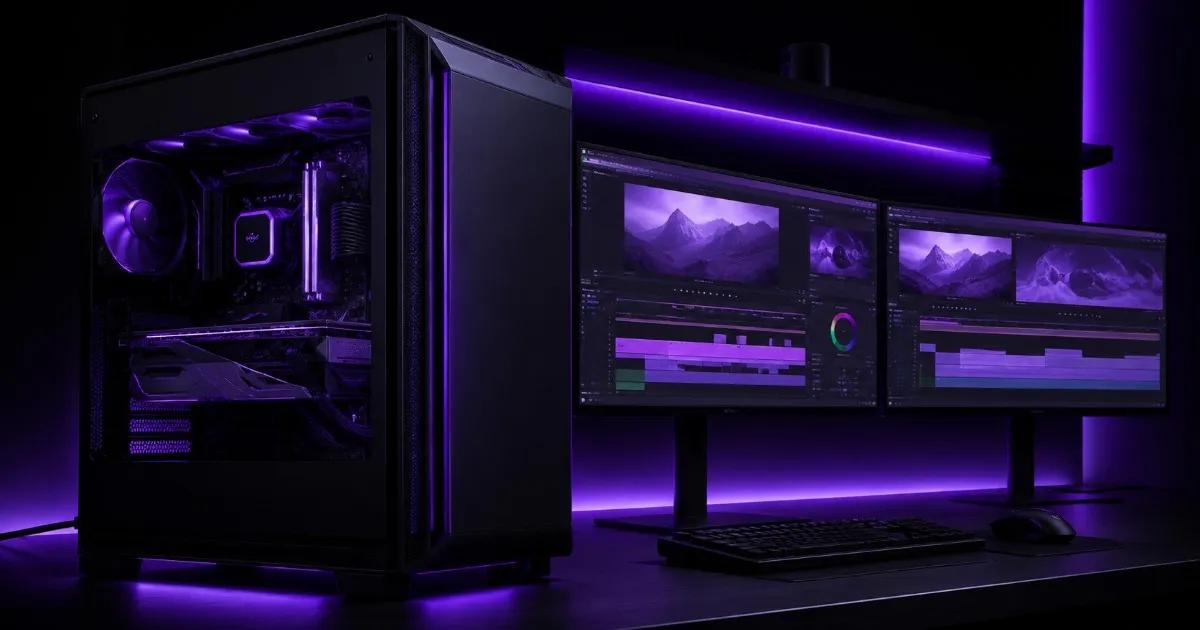
A 4K timeline that drops frames on scrub, or an 8K RAW project that chokes DaVinci Resolve every time you add a color node, almost always traces back to one wrong component — not the whole PC. Editors upgrading from a stock gaming rig or a generic pre-built usually over-spend on the wrong part (more CPU cores) while under-spending on the part that actually gates 4K/8K performance (GPU decode/encode and NVMe storage bandwidth). This guide breaks down exactly what a 4K vs 8K editing workstation needs — CPU, GPU, RAM, and storage — with a tier-mapped configuration so you can buy or build the right machine the first time.
4K vs 8K Editing: Why the Requirements Aren't the Same
4K (3840×2160) and 8K (7680×4320) aren't just "bigger resolution" — 8K has 4x the pixel data of 4K and roughly 16x that of 1080p, which changes every bottleneck in your pipeline. A 4K H.264/H.265 timeline is manageable on a strong 8-core CPU with a mid-range GPU. An 8K RAW or ProRes 4444 timeline needs GPU-accelerated debayering, a much faster storage subsystem to stream that data without dropped frames, and enough RAM to hold multiple 8K frame buffers and cache without swapping to disk. If you're editing 4K delivery from 8K source footage (a common workflow), size your machine for the 8K ingest, not the 4K output.
CPU: Core Count vs Clock Speed for Editing Software
Editing software behaves differently under the hood, so the "best CPU" depends on your NLE:
- Adobe Premiere Pro: Leans on both CPU and GPU (Mercury Playback Engine offloads decode/effects to GPU) — a balanced 12-16 core CPU with strong single-core clocks handles playback and export well; export speed scales with GPU more than raw core count once you're GPU-accelerated.
- DaVinci Resolve: The most GPU-hungry NLE of the three — color grading, noise reduction, and Fusion effects run almost entirely on GPU. A mid-tier CPU paired with a strong GPU will outperform a high-core CPU with a weak GPU here.
- Final Cut Pro / other codec-heavy workflows: Benefits from high core counts for multi-stream H.265/ProRes decode, especially with multicam or heavy noise-reduction plugins.
Practical rule: for 4K, prioritize a fast 8-12 core CPU. For 8K or heavy color/VFX work, put your budget into GPU and storage first, then scale CPU cores.
GPU: The Real Bottleneck for Color Grading and Export
GPU VRAM and hardware decode/encode engines matter more than raw gaming benchmarks for video work. Look for:
- Hardware decode/encode support for your source codec (H.264/H.265/AV1) — this is what lets you scrub 4K/8K footage smoothly without proxies.
- 12GB+ VRAM for 4K color grading and effects-heavy timelines; 24GB+ for 8K, multi-layer compositing, or AI-based tools (Resolve Neural Engine, Premiere's Generative AI features) running alongside your edit.
- Multi-GPU or workstation-class GPUs for render-farm-style export queues or when color grading and VFX run on the same machine simultaneously.
RAM: How Much Is Actually Enough
| Workflow | Recommended RAM | Why |
|---|---|---|
| 4K editing, light effects | 32–64GB | Covers timeline cache, browser tabs, plugins without swapping |
| 4K with heavy color/VFX layers | 64–128GB | Multiple cached frame buffers, Fusion/After Effects composites |
| 8K RAW/ProRes editing | 128–256GB | 8K frame buffers are 4x the size of 4K — RAM starved systems drop to disk swap and stutter |
| 8K + concurrent render/export while editing | 256GB+ | Background export competes for the same memory pool as your active timeline |
Storage: The Part Most Editors Under-Budget
An 8K ProRes 4444 timeline can demand 3-6GB/s of sustained read speed for smooth playback — a single consumer SATA SSD (500MB/s) or even a basic NVMe drive can't keep up. Build storage in three tiers:
- OS/application drive: A fast 1TB NVMe SSD for the OS, editing software, and cache files.
- Working/scratch drive: A high-endurance NVMe SSD (ideally RAID 0 across 2+ NVMe drives) sized to your active project — this is what actually determines whether 8K playback is smooth.
- Archive/backup storage: High-capacity HDD or NAS storage for finished projects and raw footage you're not actively cutting — keeps your fast NVMe free for live work.
For teams handling large 8K archives or needing shared project access, a dedicated storage server alongside the editing workstation is usually more cost-effective than maxing out internal drives.
Recommended Configuration Tiers for Video Editing
| Tier | Best For | CPU | RAM | Storage | GPU |
|---|---|---|---|---|---|
| Starter | 1080p/4K proxy editing, light corporate/social content | Intel Xeon E / AMD EPYC (entry) | 16–64GB ECC DDR4 | 1TB NVMe SSD | Optional (entry GPU for decode) |
| Pro | Native 4K editing, color grading, mid-size studios | Intel Xeon Scalable (3rd/4th Gen) / AMD EPYC Milan | 64–256GB ECC DDR4/DDR5 | 2TB NVMe SSD + HDD archive | NVIDIA RTX (12GB+ VRAM) |
| Ultra | 8K RAW editing, VFX-heavy timelines, render-while-edit | Dual Intel Xeon Scalable / AMD EPYC Genoa | 256–512GB ECC DDR5 | 4TB+ NVMe SSD (RAID) | NVIDIA RTX / A-series (24GB+ VRAM) |
See the full breakdown on our server configuration tiers page, or jump straight to a workload-specific build via video rendering & editing use case.
Why a Custom-Built Workstation Beats a Pre-Built PC for Video Work
Off-the-shelf gaming or "creator" PCs bundle a fixed CPU+GPU+RAM combo picked for benchmarks, not your actual timeline. A studio cutting native 8K RAW needs a completely different balance of GPU VRAM, NVMe RAID, and sustained thermal headroom than a YouTuber doing 4K proxy edits — and a fixed pre-built rarely gets that balance right for either. A custom-built workstation lets you put the budget exactly where your workflow needs it (GPU VRAM for Resolve, NVMe RAID for 8K ingest, RAM for VFX composites) instead of paying for a balanced spec sheet that's wrong for your specific software and footage.
Sustained render and export sessions also run hot for hours at a time — server-grade cooling and full-EATX airflow (built into every ProStation chassis) keeps clocks stable through a multi-hour 8K export queue, where a cramped gaming case throttles.
Why Choose ProStation Systems
ProStation Systems builds brand-new, custom-configured workstations for video editing, color grading, and rendering studios across India — not fixed SKUs, but a machine specced to your NLE, footage format, and delivery resolution.
"We needed a rendering server fast — ProStation delivered in 4 days, exactly as promised. The specs were perfect for our After Effects pipeline. Incredible value for brand-new hardware."
- Free pre-buy consulting to match CPU/GPU/storage to your actual editing software and footage — not a generic spec sheet.
- Purpose-built for content creators and VFX & production studios, with NVMe RAID and high-VRAM GPU options most pre-builts skip.
- 4-day build and dispatch, warranty-backed, with engineer-to-engineer support if you hit a bottleneck after delivery.
- Fully customizable — start from a Starter/Pro/Ultra base and adjust GPU, RAM, and storage RAID to your exact timeline needs.
Related reading: choosing the right GPU for compute-heavy workstations and tower vs rack form factor if you're setting up a shared edit bay.
Frequently Asked Questions
Q1. What CPU is best for 4K video editing?
For most 4K workflows in Premiere Pro or Final Cut, an 8-12 core CPU with strong single-core clocks is enough, since GPU acceleration handles most of the heavy lifting. Only move to a high-core-count or dual-CPU build if you're doing multicam 4K, heavy noise reduction, or exporting while you continue editing.
Q2. Do I need a powerful GPU for DaVinci Resolve?
Yes — Resolve is the most GPU-dependent major NLE, since color grading, noise reduction, and Fusion effects run almost entirely on the GPU. A mid-range CPU paired with a 12GB+ VRAM GPU will outperform a high-end CPU with a weak GPU for Resolve specifically.
Q3. How much RAM do I need for 8K video editing?
Plan for 128–256GB for native 8K RAW or ProRes editing, and 256GB+ if you're also running concurrent renders or heavy VFX composites, since 8K frame buffers are roughly four times the size of 4K and RAM-starved systems fall back to slow disk swapping.
Q4. What storage setup do I need for smooth 8K playback?
A single consumer SSD usually can't sustain the 3-6GB/s read speed 8K ProRes or RAW footage needs — use a RAID 0 array of two or more NVMe SSDs as your active working drive, keep the OS on a separate NVMe, and move finished projects to HDD or NAS archive storage.
Q5. Should I buy a pre-built creator PC or a custom workstation for video editing?
A custom workstation is almost always the better investment once you're editing 4K professionally or working in 8K, because pre-builts fix the CPU/GPU/storage ratio for generic benchmarks rather than your specific NLE and footage format — a custom build lets you put budget where your actual bottleneck is.
Q6. How much does a custom 4K/8K editing workstation cost in India?
A capable 4K editing workstation (Pro tier: strong CPU, 12GB+ VRAM GPU, 64-256GB RAM, 2TB NVMe) typically starts in the mid-lakh range, while an 8K-ready Ultra build with RAID NVMe storage and a high-VRAM GPU costs more depending on GPU choice — get a free custom quote based on your exact footage and software.
Final Recommendation
Don't spec a video editing workstation by "biggest CPU I can afford" — spec it by your NLE and footage format: GPU VRAM and NVMe throughput decide whether 4K/8K playback is smooth, RAM decides whether you can layer color and VFX without stuttering, and only then does core count matter for export speed. ProStation Systems builds exactly this kind of custom-configured workstation, matched to your specific editing workflow, with a 4-day build and dispatch. Call +91 87968 22044 or request a free custom quote to get the right spec for your footage.