Imaging Server & PXE OS Deployment Guide for India
By Rohit, Founder ·
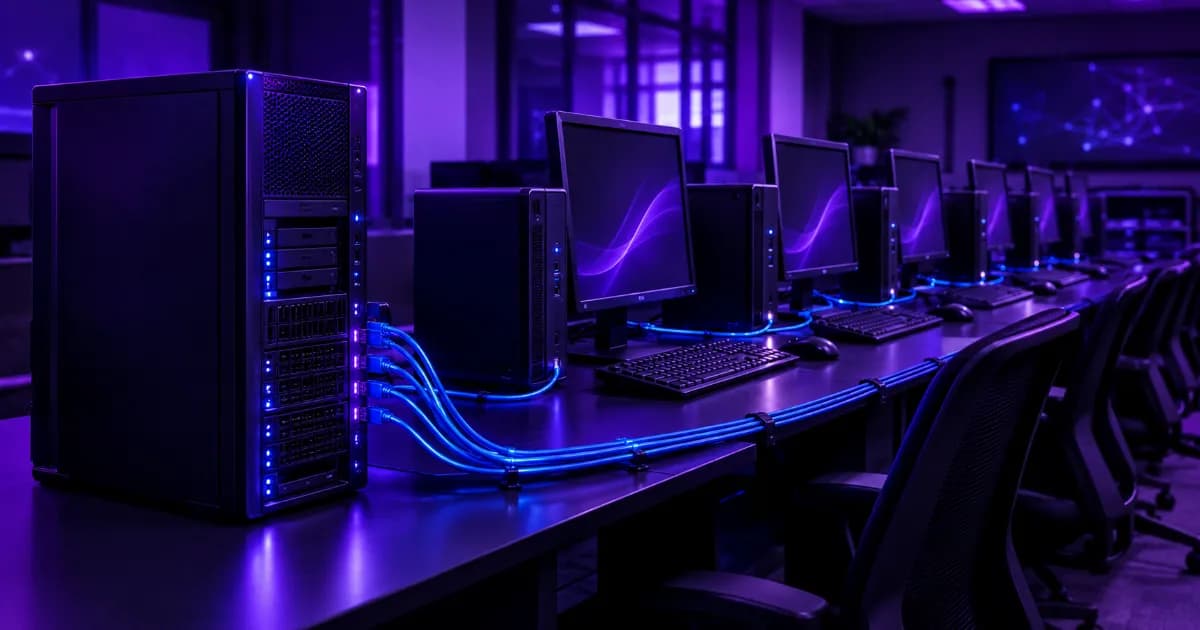
Quick answer: An imaging server (also called an OS deployment server) is one machine on your network that stores "golden" operating-system images and pushes them to many PCs or workstations that boot over the network (PXE). Instead of installing Windows or Linux and your software on each computer by hand, you build one reference machine, capture it, and restore that image everywhere. It pays off from roughly a dozen identical machines upward, or whenever you re-image often, as in labs, cafes and schools. The real limits are network speed, the server's storage read speed and how fast each client can write to its own disk.
This guide is for offices, labs, cyber and gaming cafes and schools in India that look after tens of PCs. It explains PXE network deployment, unicast vs multicast, the main tools (Clonezilla, FOG Project, and Microsoft tooling that is now retired or deprecated) and how to size the server from real bottlenecks. Facts come from the tools' own documentation; ProStation publishes no imaging benchmarks.
What Is an Imaging Server?
An imaging server holds disk images and delivers them to client computers over the LAN. A disk image is a captured copy of a prepared computer's disk: operating system, drivers, settings and installed applications. It usually also runs the services that let a blank PC find it at boot (DHCP and TFTP/PXE).
"Imaging server", "server imaging", "disk imaging server" and "computer imaging station" describe the same idea: build once, restore many times. A small station may be one PC with a USB drive; an imaging server is an always-on machine many clients can reach at once.
What Is PXE Boot and Why Does Network Deployment Use It?
PXE (Preboot Execution Environment) lets a computer start from the network instead of its own disk. The client's firmware asks the network for an address, is pointed to a boot file on a server, downloads a small environment and runs it. That small environment then does the imaging work. Because nothing is installed on the client first, you can deploy to a brand-new PC with an empty disk.
From the tools' documentation:
- Clonezilla's server edition instructs you to make sure the clients "will boot from the network (PXE or etherboot)", and it relies on a DHCP service that gives clients their addresses. Its documentation recommends fixed IP assignments for clients and an isolated network so images are not sent to unknown machines.
- FOG Project's documentation describes the same pattern: machines boot over PXE and download a small Linux client that does the imaging, with everything delivered via TFTP and PXE rather than boot disks or CDs.
On the client side, check in the BIOS/UEFI setup that network boot is enabled and that the boot order allows it.
When Does a Business Need an Imaging or OS Deployment Server?
You likely need one when at least one of these is true:
- You manage a fleet of identical or near-identical PCs. Computer labs, training rooms and exam centres are the classic case.
- You re-image on a schedule. A school resetting lab PCs between batches, or a cafe restoring seats to a clean state, benefits most. Our gaming cafe bulk workstation guide covers the hardware side of those fleets.
- You want consistency. Every seat gets the same software and settings, which cuts support calls.
You probably do not need one for fewer than about ten PCs that rarely change; a single reference USB drive is simpler. Microsoft also points toward a different approach for devices that ship with Windows already installed: Windows Autopilot uses the OEM-optimized Windows preinstalled on the device and configures it, rather than re-imaging. It is cloud-driven and, per Microsoft, aimed at setting up new devices. That suits some offices, but a lab that wants to wipe and restore identical PCs still points toward imaging.
How Does Network Imaging Work, Step by Step?
- Build a reference PC. Install the operating system, drivers, updates and applications on one machine and configure it exactly how you want every PC to be.
- Generalise it (Windows). Microsoft states that before deploying a Windows image to new PCs you must generalise it with Sysprep, which removes computer-specific information such as the computer SID and installed drivers; this is required even for similar hardware. Linux and other systems have their own equivalents (for example, regenerating host keys and machine IDs).
- Capture the image to the server. Boot the reference PC from the network (or USB), run the capture task and save the image to the server's storage.
- Prepare clients. Enable PXE/network boot in each PC's firmware and put the PCs on the same network segment as the server.
- Start a deployment task. Choose unicast (each PC gets its own stream) or multicast (one stream for a group). Clients PXE boot, load the small imaging environment and write the image to disk.
- Finish and maintain. Each PC reboots and takes its own name; re-capture the image after major updates and keep a previous version.
Unicast vs Multicast: Which Should You Use?
Unicast sends a separate copy of the image to each client. Multicast sends the image once and every participating client receives the same stream. FOG's documentation describes multicast as a single sender process that transmits the image once while every client writes the stream to disk, and notes that a session waits for an expected client count or a timeout before it starts, and that a machine arriving late cannot be given the part it missed. FOG also states multicast packets generally do not cross routers or WAN links without extra network configuration (IGMP-related), so multicast is best kept inside one site and subnet.
| Factor | Unicast | Multicast |
|---|---|---|
| Network load | Grows with every client (one copy each) | One copy for the whole group |
| Starting clients | Any time, independently | All clients start together; late arrivals miss out |
| Speed driver | Server uplink shared across clients | Slowest participating client |
| Network requirements | Basic switching | Multicast-capable switches; keep within one subnet unless configured |
| Best for | A few PCs at a time, mixed arrival | Labs and rooms of identical PCs imaged together |
The "slowest participating client" point is our reasoning from how a single shared stream works, not a quote from a vendor: because everyone receives the same stream, one slow disk or a flaky network port can hold the group back.
An Illustrative Bandwidth Calculation
The figures below are a hypothetical arithmetic example, not a measurement and not a ProStation benchmark. Assume a 40 GB image (the amount actually transferred), a 1 Gb/s link, treated as 125 MB/s at best, and ignoring protocol overhead, compression and disk speed.
- One client: 40,000 MB ÷ 125 MB/s = 320 seconds, about 5.3 minutes at the very best.
- 20 clients, unicast, server on one 1 Gb/s link: 20 × 40 GB = 800 GB leaving the server; 800,000 MB ÷ 125 MB/s = 6,400 seconds, about 107 minutes. The server's link is the bottleneck.
- 20 clients, unicast, server on a 10 Gb/s link (1,250 MB/s) with 1 Gb/s client ports: the server could in principle supply 20 clients at 125 MB/s each, which would be 2,500 MB/s, so the 10 Gb/s link now caps the total: 800,000 MB ÷ 1,250 MB/s = 640 seconds, about 10.7 minutes.
- 20 clients, multicast: the image is sent once, so the 40 GB takes about 5.3 minutes at 125 MB/s, regardless of group size, if every client can keep up.
Real results will be slower. Compression and decompression, protocol overhead, client disk write speed and network gear all matter. The point of the example is the shape: unicast time grows with client count, multicast time does not, and a faster server link helps unicast far more than it helps a single client. For more on link speeds, see our 1GbE, 10GbE and 25GbE networking guide.
Which Imaging Tools Should You Know About?
Clonezilla
Clonezilla is a free disk imaging and cloning tool with different editions. According to the project, Clonezilla Live is for single-machine backup and restore and supports unicast only, booting from CD/DVD, USB, PXE or hard drive. Clonezilla lite server handles mass deployment with unicast, broadcast, multicast and BitTorrent, and the project says it can clone many (40 plus) computers simultaneously. Clonezilla SE is built on DRBL, so a DRBL server must be set up first; it supports unicast, broadcast and multicast. Known restrictions listed by the project include: the destination partition must be equal to or larger than the source, differential and incremental backups are not implemented, and online imaging is not supported (the partition must be unmounted).
FOG Project
FOG describes itself as a free, open-source network computer cloning and management solution that can capture, deploy and manage Windows, macOS and various Linux distributions. It adds a web management interface, scheduled tasks and unicast and multicast sessions, and stores images on storage nodes.
Microsoft tooling: what is retired or deprecated
This is where older guides mislead. As of October 2026, Microsoft's documentation states:
- Microsoft Deployment Toolkit (MDT) is retired. Microsoft says MDT integration with Configuration Manager and MDT Standalone are no longer supported, suggests modern provisioning such as Windows Autopilot, and says that for customers with on-premises infrastructure and existing Configuration Manager environments, operating system deployment (OSD) remains a fully supported option.
- Windows Deployment Services (WDS) is deprecated beginning with the OS version following Windows Server 2025. This covers the inbox role and WDS-provided PXE functionality. It is still available on currently supported Windows Server releases including Windows Server 2025 and earlier, and Microsoft has not published a removal date. Microsoft recommends planning migration to alternatives such as Microsoft Configuration Manager.
- Windows 11 cannot be deployed end to end with WDS alone. Workflows that run Windows Setup from the installation media's boot.wim in WDS mode are blocked for Windows 11. WDS can still PXE boot devices with custom boot images.
The practical conclusion: do not build a new deployment setup around WDS or MDT. A new lab or office should look at an independent, non-Windows imaging server (Clonezilla or FOG, running on Linux), or Configuration Manager or Autopilot if you are already inside Microsoft's management ecosystem. Microsoft says independent PXE implementations and non-Microsoft deployment products that do not depend on the inbox WDS role are not affected.
What Hardware Does an Imaging Server Need?
There is no universal spec; the right machine depends on how many PCs you image at once, how big the image is and how many versions you keep. Reason from four bottlenecks, in this order:
- Network link. From the example above, the server's uplink caps unicast. A 1GbE server is fine for a few clients; a 10GbE uplink to a capable switch helps when many clients pull images in parallel. Client ports and switch backplane limit what the server can use.
- Storage read throughput and capacity. Many simultaneous unicast clients create many concurrent reads. Solid-state NVMe handles parallel reads better than spinning disks, which suit archived older images. Read our NVMe, SAS and SATA storage guide and RAID levels explained; RAID protects against drive failure but it is not a backup of your golden images, so keep a copy elsewhere (see our NAS storage server setup guide).
- RAM. Spare memory lets the operating system cache frequently read image data, and multicast and compression tools use memory buffers. This is general OS behaviour; the exact benefit depends on the tool, so check its documentation. Reliability matters too, which is why server builds use ECC (see ECC vs non-ECC RAM).
- CPU. Some tools compress images, but whether CPU or network limits you depends on settings; it is rarely the first concern for a small lab.
Then check the client end: a PC with a slow disk will finish later than the network allows, and in multicast it can slow the group. Also confirm each client's network port, since a 1 Gb/s port caps each client no matter how fast the server is.
How Does This Map to ProStation Systems' Tiers?
ProStation Systems builds new custom tower servers with Intel Xeon processors and ECC DDR4 memory. The listed tiers are:
| Tier | Listed specs (from ProStation's site) | Where it could fit an imaging role |
|---|---|---|
| Starter | Intel Xeon E, 16–64GB ECC DDR4, 1TB NVMe SSD, 1GbE / 10GbE, Ubuntu or Windows Server | A single lab or small office with a modest number of images; add a 10GbE option if you image several PCs in parallel |
| Pro | Intel Xeon Scalable, 64–256GB ECC DDR4, 2TB NVMe SSD plus HDD options, 10GbE / 25GbE, Ubuntu, Windows, VMware or Proxmox | A larger fleet, several images and versions, or an imaging server that also acts as a virtualization host or file server |
| Ultra | Dual Intel Xeon Scalable, 256–512GB ECC DDR4, 4TB+ NVMe in RAID, 25GbE, GPU options | Usually more than an imaging server needs; consider it only if the same machine does heavy compute |
Two honest caveats. First, tiers are starting points: ProStation builds to your configuration, and you can describe your client count and image sizes in the server customizer or ask for a free consulting call. Second, ProStation publishes no imaging benchmarks, so any claim about how many PCs a given tier images per hour would be a guess. Test with your own images. See also our guides on small business servers and tower vs rack servers for form-factor choices.
If your imaging server shares hardware with other roles, such as a Proxmox host, see the office virtualization host guide. A tower imaging server for a lab rarely needs Windows Server at all: the tools above run on Linux, and Ubuntu Server is a listed pre-installed option. If you do plan Windows Server, read the Windows Server licensing guide first. Operating-system and software licences are the customer's responsibility unless explicitly quoted.
Who Benefits Most, and What About Budget Labs?
Schools and colleges (see the education industry page), cafes, small offices (small business use cases) and training centres gain most. Budget lab with older PCs? A refurbished server can host the imaging role. ProStation's sister brand Serverwale sells refurbished hardware, and our new vs refurbished comparison explains the trade-offs. An imaging server is an always-on dependency, so also see the UPS sizing guide, because a power cut in the middle of a restore can leave a half-written PC disk.
Common Mistakes to Avoid
The usual ones: skipping Sysprep on the golden image, planning a new setup around retired or deprecated Microsoft tools, imaging onto a smaller disk than the source (Clonezilla needs the destination partition at least as large), and not backing up the images themselves. See the downtime and warranty guide for why the imaging server is a dependency worth protecting.
Why Choose ProStation Systems for the Server?
ProStation builds with new components, assembles in-house in India and stress-tests for 48+ hours before dispatch (see the build and delivery guide). Your chosen OS is pre-installed, hardware warranty is one year with paid extended plans, and on-site support is listed for Delhi NCR, Mumbai, Bengaluru, Hyderabad, Chennai and Pune (Delhi NCR). See warranty and support, the buyer checklist and workstation vs server.
Frequently Asked Questions
Q1. What is an imaging server?
An imaging server stores disk images of a prepared reference computer and deploys them to many client PCs over the network. Clients boot with PXE, load a small imaging environment and write the image to their disks. It is used in labs, cafes, schools and offices to build or reset many identical PCs quickly and consistently.
Q2. What is the difference between unicast and multicast imaging?
Unicast sends a separate copy of the image to each client, so total traffic grows with the number of PCs. Multicast sends the image once to a group of clients that all receive the same stream. Multicast suits many identical PCs imaged together on one subnet, but clients must start together and the network must support it.
Q3. Is Windows Deployment Services (WDS) still supported?
WDS still works on currently supported Windows Server releases including Windows Server 2025, but Microsoft has announced it is deprecated beginning with the next Windows Server release, and has not published a removal date. Windows 11 cannot be deployed end to end with WDS alone. Microsoft Deployment Toolkit (MDT) is retired and no longer supported.
Q4. Do I need Windows Server to run an imaging server?
No. Clonezilla and FOG Project run on Linux, and Microsoft says independent PXE implementations and non-Microsoft deployment products are not affected by the WDS deprecation. Windows Server is only needed if you choose Microsoft's tooling or run other Windows roles. Operating-system licences remain the customer's responsibility unless quoted.
Q5. How much network speed does imaging need?
It depends on image size, number of clients and method. As an illustrative calculation only, a 40 GB image over a 1 Gb/s link (about 125 MB/s at best) takes roughly 5 minutes per client, and unicast to 20 clients through one 1 Gb/s server link would take roughly 107 minutes. Multicast or a faster server link reduces that. Real results vary.
Q6. Which ProStation tier suits an imaging server?
A Starter tower (Intel Xeon E, ECC DDR4, NVMe, 1GbE/10GbE) can suit a single lab, while Pro (Xeon Scalable, up to 25GbE) suits larger fleets or shared roles. ProStation publishes no imaging benchmarks, so confirm sizing against your own image size and client count through free consulting on +91 87962 44410.
Final Recommendation
Start with the workload, not the hardware: count how many PCs you image at once, how large your golden image is and whether your network supports multicast. Choose an independent tool such as Clonezilla or FOG on Linux for a new setup, avoid building on MDT or WDS, and size the server around its network link and storage read speed. When you are ready for a quote, contact ProStation Systems or call +91 87962 44410 (WhatsApp: wa.me/918796244410) for free consulting, or browse the servers page.
Sources: Microsoft Learn (MDT release notes and retirement notice; WDS boot.wim support and deprecation notice; Windows deployment scenarios and tools; Windows Autopilot overview; Sysprep generalize), Microsoft Support KB 5129631 (WDS deprecation early notice), Clonezilla project pages (clonezilla.org, Clonezilla SE), FOG Project (fogproject.org and docs.fogproject.org multicast documentation). Check the current documentation before purchase.