Best Workstation for YouTube Editing & Streaming
By Rohit, Founder ·
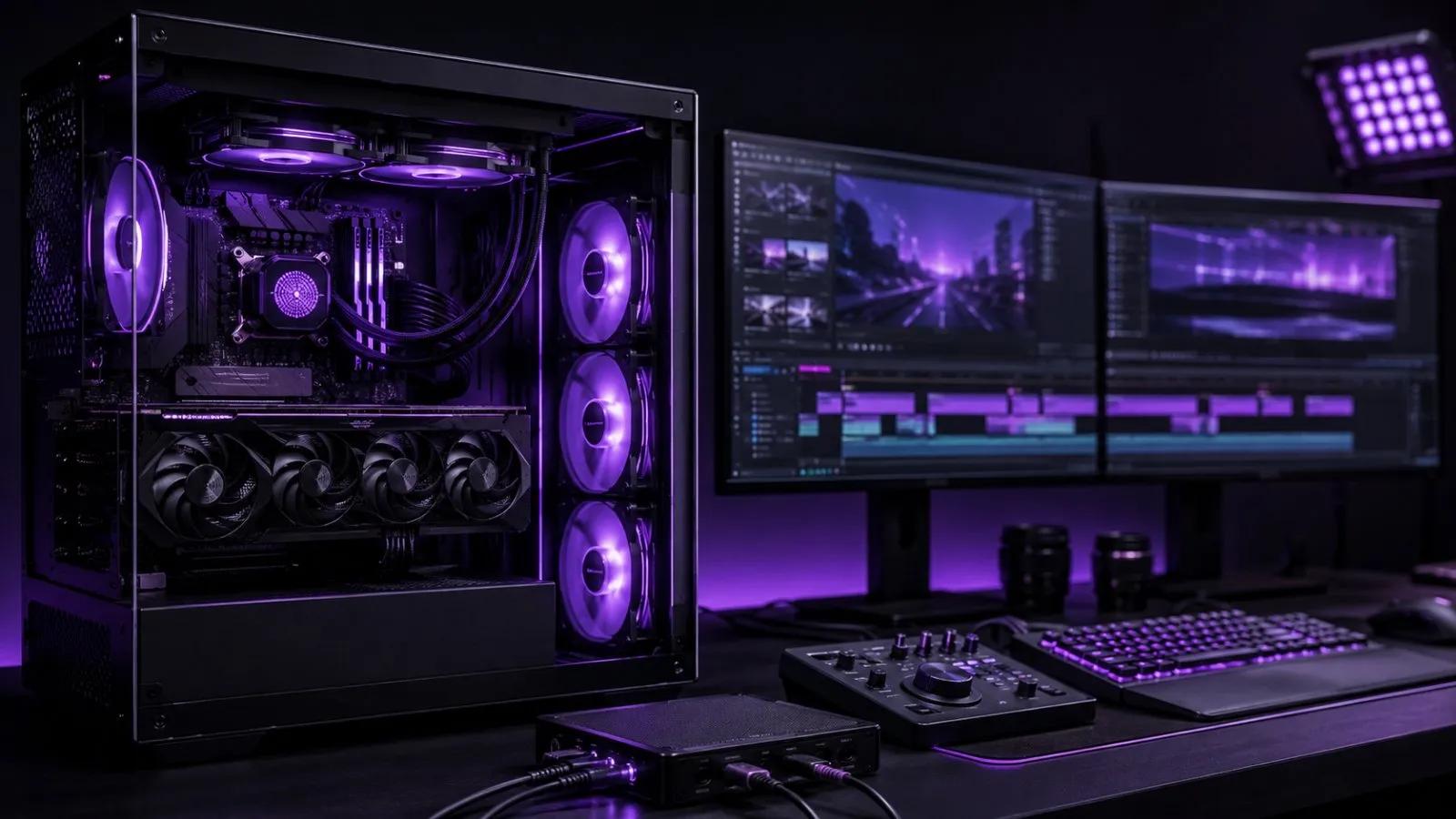
Most YouTubers don't hit a hardware wall while editing. They hit it the day they try to edit tomorrow's video while streaming tonight's — and the timeline starts dropping frames the moment OBS spins up. A machine that handles Premiere Pro or DaVinci Resolve fine on its own can still choke the instant it's also encoding a live stream, running a capture card, and pushing overlays. That's a different sizing problem than "editing PC," and most off-the-shelf gaming rigs aren't built to solve it.
Why Editing + Streaming Together Is a Different Workload Than Either Alone
Editing is bursty — you scrub a timeline, render a section, export, then sit idle while you review. Streaming is sustained — encoding runs continuously for hours, at a fixed frame budget, with zero tolerance for a dropped frame mid-broadcast. Put both on one machine and you need enough CPU headroom that a background export doesn't stutter your live encode, and enough GPU capacity that your NLE's playback engine and your stream encoder aren't fighting over the same silicon.
The fix isn't just "more cores." It's making sure encoding and editing use separate resources wherever possible — a dedicated hardware encoder (NVENC on NVIDIA GPUs) for the stream, while the CPU and GPU compute handle Premiere/Resolve/DaVinci playback and export. Get that split right and you can edit a 4K project in the background while streaming 1080p60 without either task noticing the other.
CPU and GPU Balance for Simultaneous Editing and Encoding
Two things matter more than raw clock speed for this exact use case:
- Core count over pure clock speed: Multi-track timelines with color grading, effects, and multicam angles benefit from more cores far more than a small clock bump — especially once you're also running a stream encoder and a capture app in the background.
- A GPU with a dedicated hardware encoder: NVENC-capable NVIDIA GPUs offload stream encoding to a separate chip on the card, leaving the GPU's compute cores free for your editor's playback and export acceleration. This is the single biggest reason two people with "similar" GPUs get very different results streaming and editing at once.
RAM matters too, but less dramatically — 32-64GB is comfortable for most creator workflows; heavier multicam or after-effects-style compositing pushes that higher.
ProStation Tiers Mapped to Creator Workloads
ProStation's Starter/Pro/Ultra tiers map cleanly onto how serious the dual workload is:
| Tier | Best fit for | CPU / GPU | RAM | Storage |
|---|---|---|---|---|
| Starter | 1080p/1440p streaming + light editing, single-camera vlogs | Entry Xeon E / EPYC + optional consumer GPU | 16–64GB ECC | 1TB NVMe SSD |
| Pro | 4K multicam editing + 1080p60 streaming, capture card + overlays | Xeon Scalable / EPYC Milan + NVIDIA RTX (NVENC) | 64–256GB ECC | 2TB NVMe SSD + HDD options |
| Ultra | 4K/8K edit + multi-scene 4K streaming, heavy motion graphics | Dual Xeon Scalable / EPYC Genoa + RTX/A-series | 256–512GB ECC | 4TB+ NVMe SSD (RAID) |
Most solo YouTubers doing regular 1080p60 or occasional 4K streams land comfortably on Pro tier. Ultra only becomes necessary once you're running multi-camera 4K streams with real-time overlays, or editing 4K/8K footage on the same machine you're broadcasting from — our 4K/8K video editing workstation spec guide breaks down that heavier editing side in more detail.
Storage and Capture Card Considerations
Two storage mistakes show up constantly in creator builds. First, editing directly off the same drive you're recording your stream capture to — a fast NVMe scratch disk dedicated to active project files keeps timeline scrubbing smooth even mid-stream. Second, underestimating PCIe lane usage: a capture card, a fast NVMe array, and a GPU all competing for lanes on a budget motherboard is a real bottleneck. Pro and Ultra-tier ProStation builds are specced with enough PCIe lanes that a capture card doesn't force you to drop your GPU to a slower slot.
For archive footage — raw camera files, past streams, B-roll libraries — a separate bulk HDD tier keeps your fast NVMe free for whatever you're actively cutting, instead of filling up within a few projects.
Why Server-Grade Cooling Matters for Multi-Hour Streams
A 3-hour stream while a background render chugs along is a sustained thermal load, not a burst — the kind of continuous, hours-long draw that consumer gaming cases and stock coolers aren't really designed around. Retail gaming PCs are tuned for short high-intensity sessions with cooldown gaps between them; a creator machine doesn't get those gaps. ProStation builds use server-grade cooling and case airflow designed for sustained, continuous load, so your CPU and GPU don't start throttling clock speeds an hour into a long stream — which is exactly when a viewer notices dropped frames or a stuttering timeline the most.
Why Choose ProStation Systems
A dual-workload creator machine is a genuinely different spec exercise than a standard editing PC or a standard gaming PC bought off a shelf — it needs the encoder, PCIe lanes, and cooling all pulling in the same direction, not fighting each other three months in. ProStation builds every workstation to the actual workload, not a generic SKU.
"We needed a rendering server fast — ProStation delivered in 4 days, exactly as promised. The specs were perfect for our After Effects pipeline. Incredible value for brand-new hardware." — Rahul Mehta, CTO, Designify Studios (Video Production)
Every build starts with a free consulting call to map your actual editing software, stream resolution, and scene complexity — not a generic template — ships in 4 working days, and comes with a 1–3 year warranty and 24/7 support. See the video rendering use case page, content creators industry page, full server tier specs, or go straight to customize your build. If your workload leans more toward VFX-scale rendering than live streaming, our VFX studio render server guide covers that heavier end of the spectrum.
Frequently Asked Questions
Q1. Can one PC really handle editing and live streaming at the same time?
Yes, if it's specced for it — the key is a GPU with a dedicated hardware encoder (NVENC) so stream encoding doesn't compete with your editor's GPU compute, paired with enough CPU cores that a background render doesn't stutter your live broadcast.
Q2. What GPU do I need to stream and edit at the same time?
Look for an NVIDIA RTX-class GPU with NVENC hardware encoding rather than judging purely on VRAM — the dedicated encoder chip is what lets the GPU handle a live stream and your editor's playback engine simultaneously without either one slowing down.
Q3. How much RAM does a YouTuber editing and streaming workstation need?
32-64GB is comfortable for most solo creator workflows with multiple apps open (editor, OBS, browser, chat). Heavier multicam projects or motion-graphics-heavy overlays push that toward 128GB and the Pro/Ultra tier.
Q4. Do I need a capture card if I'm just streaming gameplay or webcam?
Not for pure screen or webcam capture — that runs through the GPU encoder directly. A capture card matters once you're bringing in an external camera, a second PC feed, or a mixer/switcher setup, and at that point PCIe lane planning becomes important so it doesn't bottleneck your GPU.
Q5. How much does a workstation for YouTube editing and streaming cost in India?
A Pro-tier build — strong CPU, NVENC-capable GPU, 64-128GB RAM, NVMe scratch storage — typically starts in the ₹1.5-3 lakh range; add a capture card, higher core count, and Ultra-tier RAM for multi-scene 4K streaming and it moves toward ₹3-5 lakh. These are indicative ranges — get a free custom quote based on your exact editing software, stream resolution, and overlay complexity.
Q6. Is a gaming PC good enough for editing and streaming together?
It can work for light 1080p streaming and casual editing, but retail gaming cases and stock coolers are tuned for short bursts with cooldown time, not the hours-long sustained load a real streaming session puts on the CPU and GPU. That's where thermal throttling and dropped frames tend to show up first.
Final Recommendation
If you're editing and streaming as separate, occasional tasks, a Starter or entry Pro build is enough. The moment you're doing both at once regularly — a multicam 4K edit running in the background of a live 1080p60 or 4K stream — spec for the dual workload from day one: an NVENC-capable GPU, enough CPU cores to keep both tasks smooth, PCIe lanes for your capture card, and cooling built for sustained multi-hour sessions, not short bursts. Talk to ProStation's team before you order, and get a build matched to your actual channel — not a generic gaming SKU. Call +91 87968 22044 or WhatsApp wa.me/918796822044 for a free consulting call.